Backend Theme
Last updated
What is AgentLaire Backend Theme?
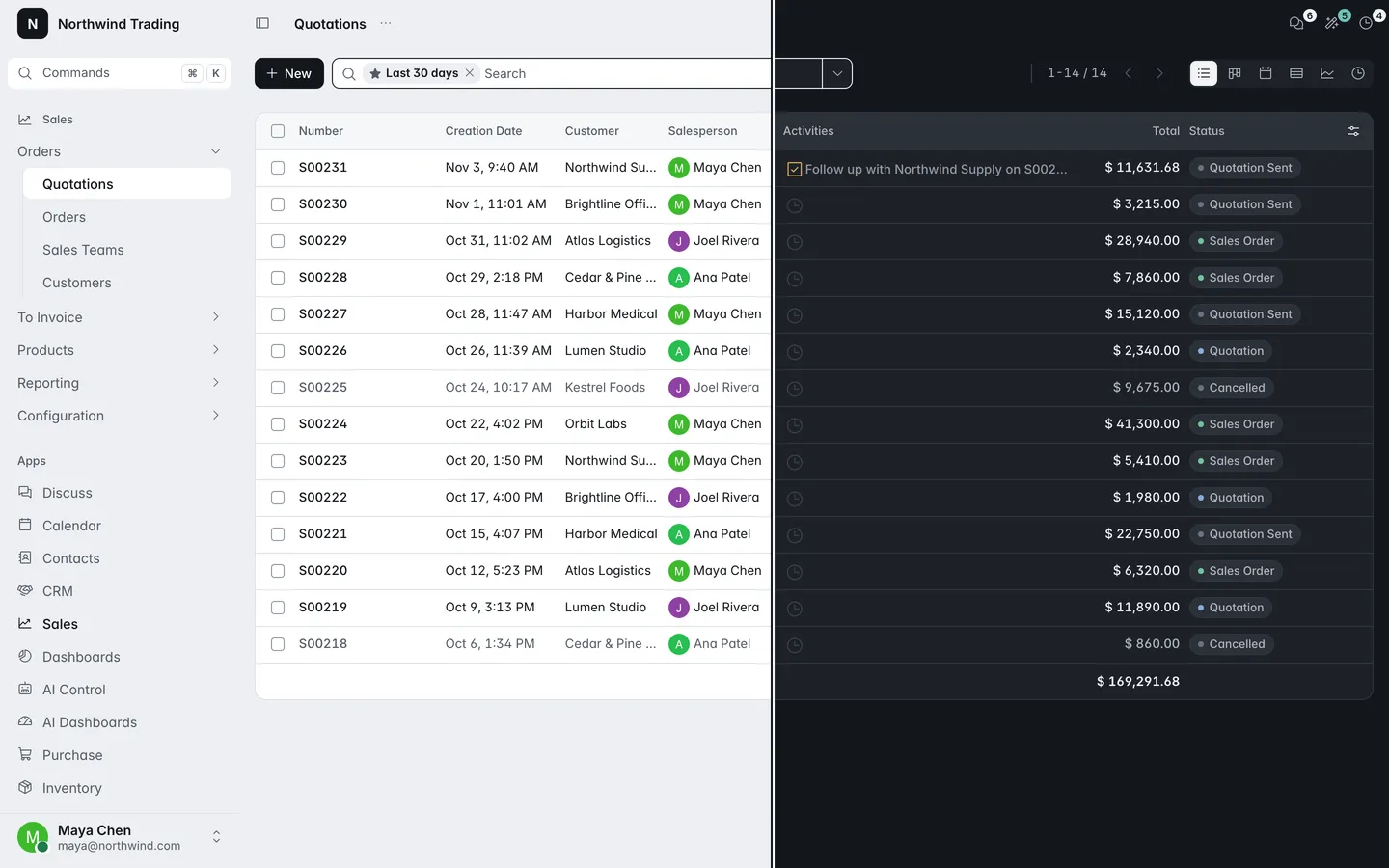
Section titled “What is AgentLaire Backend Theme?”AgentLaire Backend Theme (agentlaire_backend_theme) gives Odoo’s web client a new look: a left sidebar, light and dark modes, and a chatter you can dock beside or below the form. It is a paid module, $199 one-time per Odoo version, under the OPL-1 license, for one database per purchase. See the product page.
It is for Odoo 18, 19 and 20 Community, self-hosted. It needs only Odoo’s web and mail modules, so it works without any AgentLaire AI module. No AgentLaire module depends on it either.
How do I install it?
Section titled “How do I install it?”AgentLaire Backend Theme installs like any Odoo module. Copy the module into your addons path, restart Odoo, then open Apps, update the app list, search for “AgentLaire Backend Theme” and click Install. The page reloads with the sidebar.
How do users choose their own look?
Section titled “How do users choose their own look?”AgentLaire Backend Theme adds an Appearance group to each user’s preferences. Open the user menu in the sidebar, click My Preferences, then the General tab.
| Setting | Default | Options |
|---|---|---|
| Colour mode | Company default | Company default, Light, Dark, System |
| Sidebar | Company default | Company default, Expanded, Icons only |
| Chatter position | Company default | Company default, Auto, Docked right, Below the form |
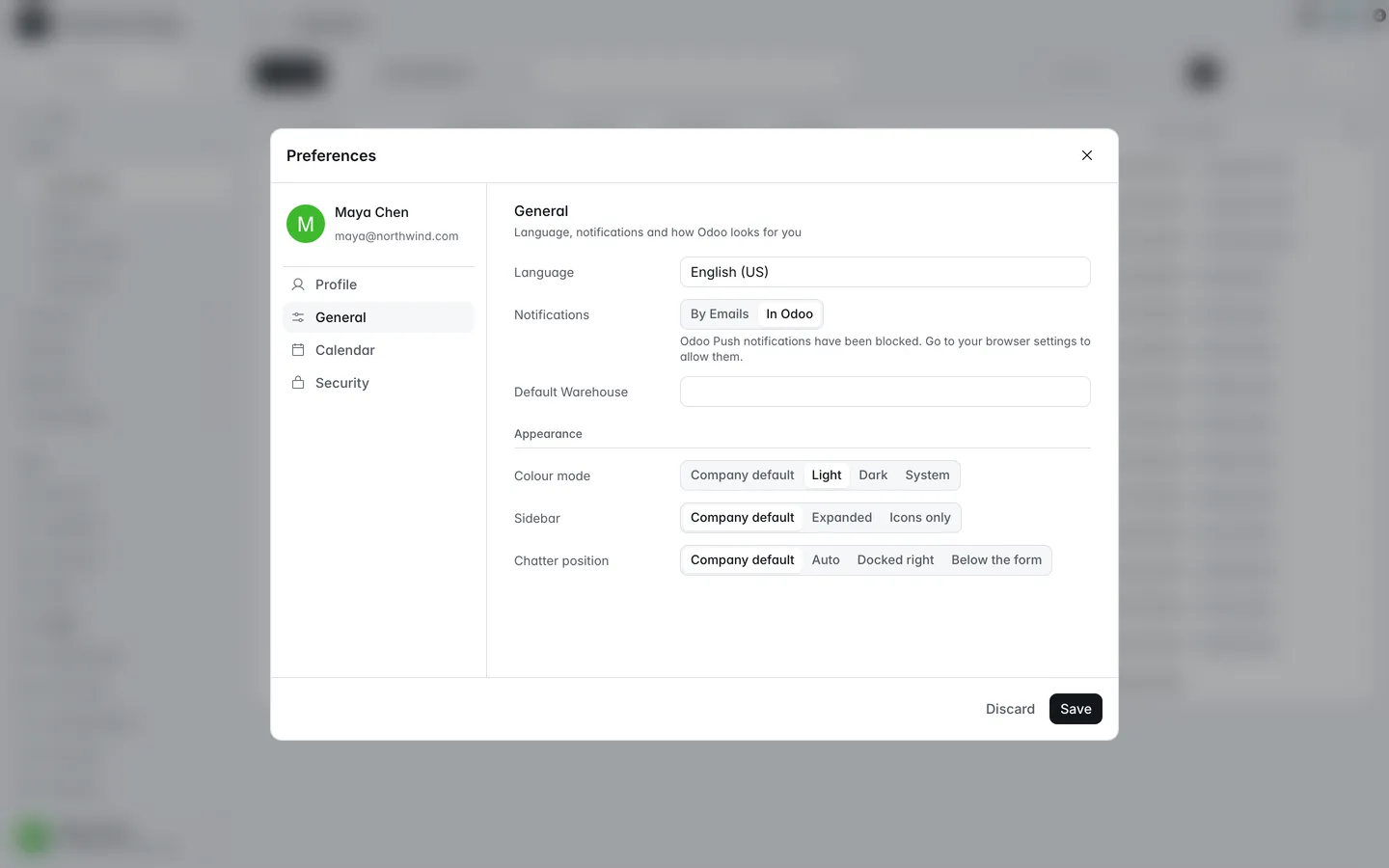
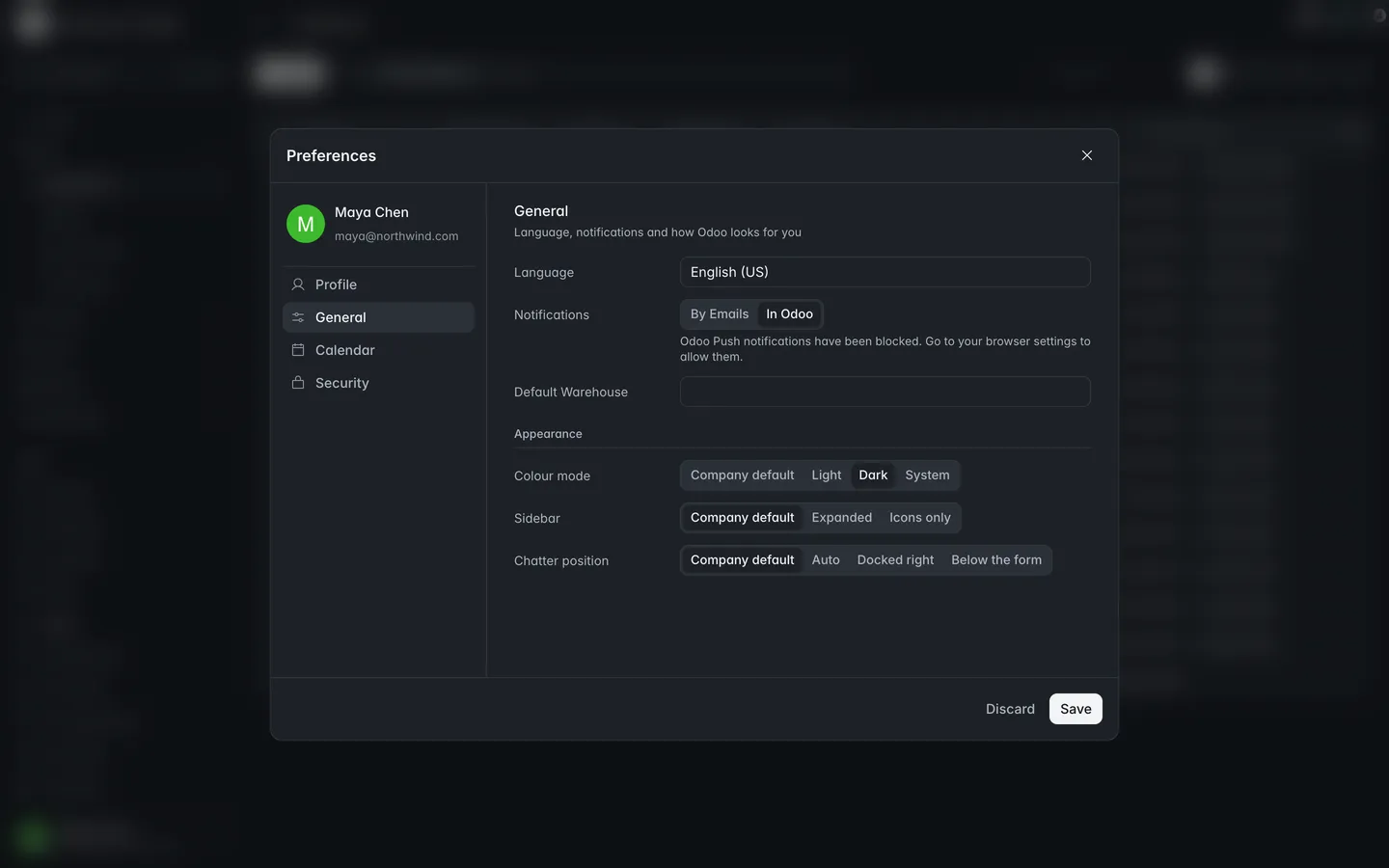
The user menu also has an Appearance control with Light, Dark and System. Picking one saves it for that user and reloads the page. System follows the device’s light or dark setting.
How does an administrator set company defaults?
Section titled “How does an administrator set company defaults?”AgentLaire Backend Theme keeps its company defaults under Settings › AgentLaire Backend Theme. They apply to everyone who has not chosen their own.
| Setting | Default | What it does |
|---|---|---|
| Colour mode | Light | The look for users who have not chosen. Options: Light, Dark, System. |
| Sidebar for new users | Expanded | How the sidebar opens the first time. Options: Expanded, Icons only. |
| Chatter position | Docked right | Where the chatter sits by default. Options: Auto, Docked right, Below the form. |
The same screen shows the installed version and the license.
How does the sidebar work?
Section titled “How does the sidebar work?”AgentLaire Backend Theme replaces the top menus with a sidebar. From top to bottom it shows the company, a Commands entry, the current app’s menus, the apps list and the user card. The systray stays in a slim top bar.
- From 1200 px wide, the sidebar is Expanded or Icons only, and toggling it saves the choice for that user.
- Below 1200 px it shows icons only, each with its name as a tooltip.
- On a phone it is hidden and opens as a drawer from a menu button in the top bar.
How do I use the command palette?
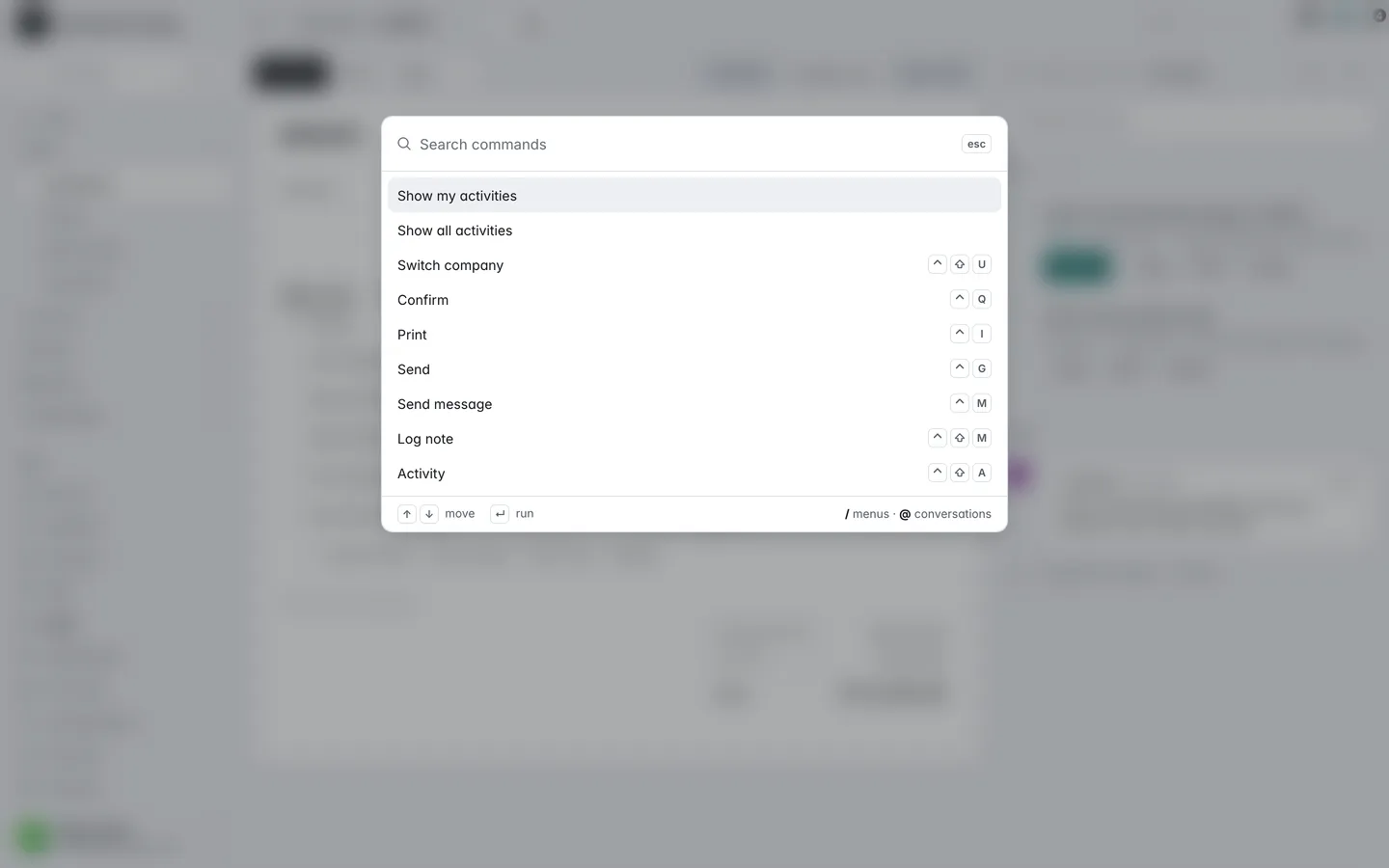
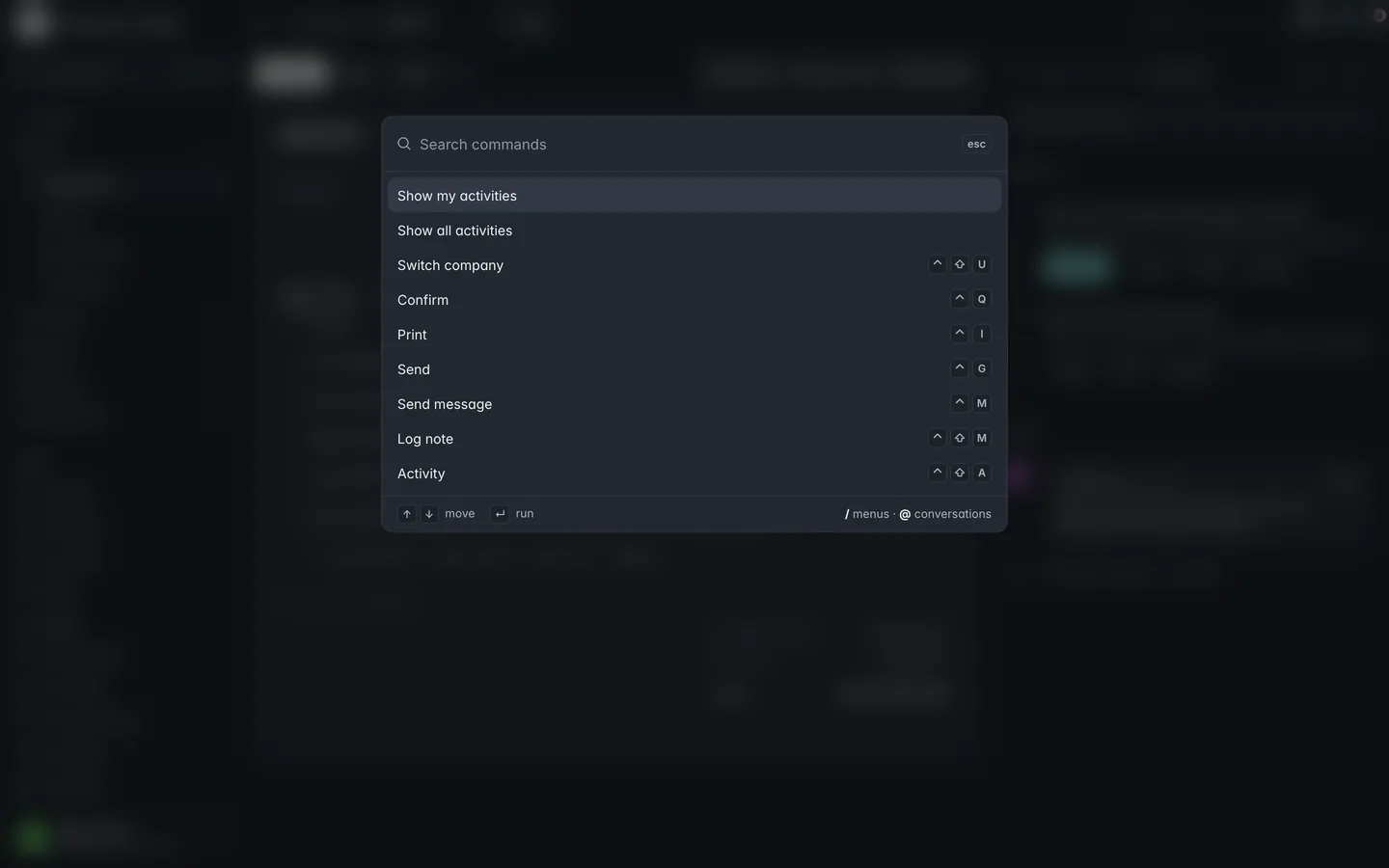
Section titled “How do I use the command palette?”AgentLaire Backend Theme styles Odoo’s own command palette and opens it from the Commands entry in the sidebar, or with Ctrl K (⌘ K on a Mac). The palette finds menus and records as Odoo does; the theme changes how it looks, with shortcuts shown as key caps.
Where does the chatter go?
Section titled “Where does the chatter go?”AgentLaire Backend Theme lets each user place the chatter on a form.
| Chatter position | Result |
|---|---|
| Auto | Odoo’s own rule, except that below 1440 px wide the chatter sits under the form. |
| Docked right | Beside the form from 1200 px wide, in a 320 px column below 1440 px. |
| Below the form | Always under the form. |
Forms with an attachment preview keep Odoo’s own layout.
The chatter shows one row of icon buttons (Message, Note, Schedule activity, search, and Ask AI when AgentLaire AI Agents is installed), then a “Message followers…” field and the timeline. Schedule activity opens an inline form in the chatter, with a way to open Odoo’s full dialog.
How does dark mode work?
Section titled “How does dark mode work?”AgentLaire Backend Theme serves Odoo’s dark styles with its own dark colors, so the web client, Discuss and charts all switch together. Graph and pivot views and AgentLaire dashboard tiles draw in the dark colors too.
The sign-in pages follow the browser’s light or dark setting, since no one has chosen yet.
What does it not change?
Section titled “What does it not change?”AgentLaire Backend Theme changes how screens look. It does not add, move or remove fields, buttons or menus.
- Printed PDF reports keep their own layout and fonts.
- The website and the customer portal look the same as without the theme.
How do I uninstall it?
Section titled “How do I uninstall it?”Open Apps, find AgentLaire Backend Theme and click Uninstall. Odoo’s default look comes back and your data is never changed. AgentLaire AI modules keep working the same way, with or without the theme.